
Every trip, in one place
Bookings, ideas, passports and maps — save it all into one private folder per trip, straight from any app. No more digging through email and screenshots at the gate.
Travel planning gets messy fast
- Your flight confirmation is buried in email
- The hotel address is a screenshot somewhere
- Restaurant ideas are scattered across reels and chats
- Your passport scan sits in the camera roll for anyone to see
- You rebuild the same system for every single trip
Bookings and ideas, together
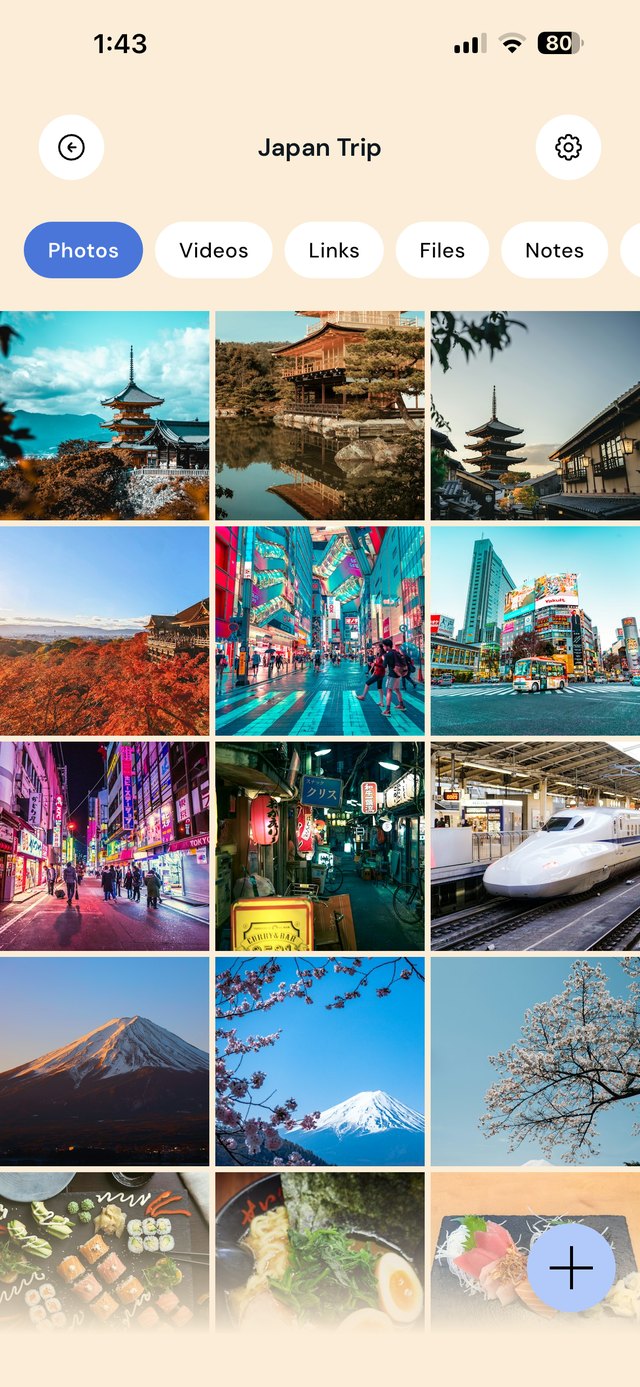
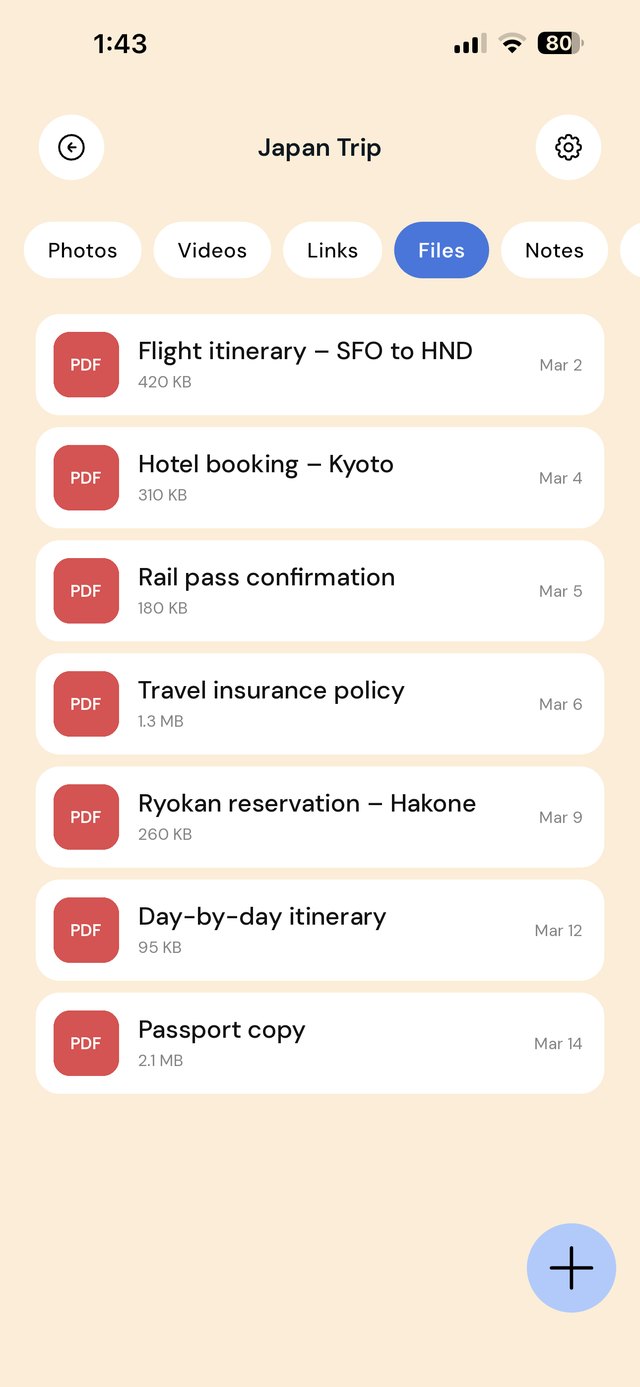
Flights, hotels and tickets sit right next to the reels, maps and restaurant lists you are excited about. One folder per trip means everything is a tap away — on the plane, in the queue, on the ground.
How to organize travel plans in one app
The problem is rarely a lack of information. It's that everything you save about a trip lands wherever it arrived: your inbox, your camera roll, a browser tab, a group chat. Then you're searching four places at once for a booking reference at 6am in an airport queue. The fix is giving every trip a single home.
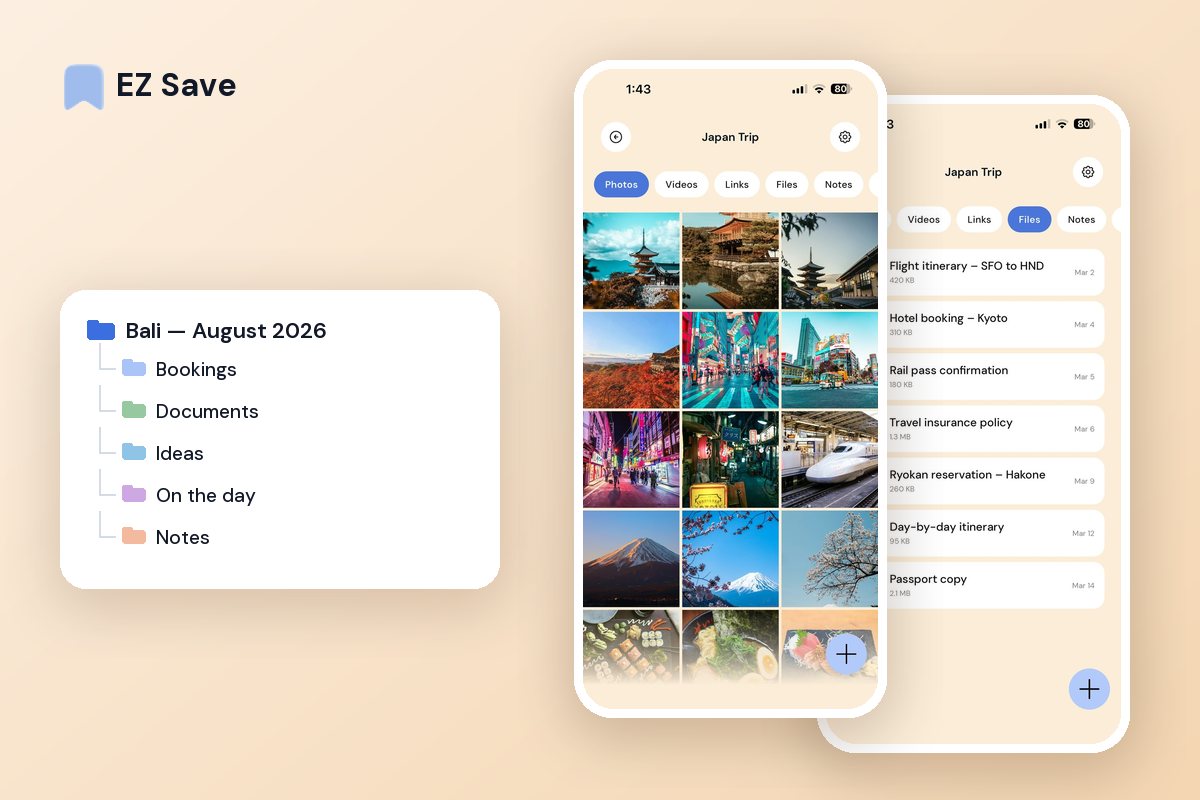
- Make one folder per trip, named for the place and the month, like Bali — August 2026.
- Add the same sub-folders every time: Bookings, Documents, Ideas, On the day and Notes. The structure is below.
- Save from the share sheet the moment something arrives: a confirmation PDF, a reel, a map screenshot. You do it without leaving the app you're in, so there's nothing to organize later.
- Run the five-minute check the night before you fly, further down this page.
Because the same system works for the next trip, you never rebuild it from scratch. You just make a new folder and go.
A folder structure that works for any trip
One folder per trip, five sub-folders inside. The point is that you never have to think about where something goes — which is the only reason a system survives contact with an actual holiday.
What to save, and exactly when
The habit is saving at the moment something arrives, not "sorting it later". Each of these takes about three seconds.
| When this happens | Do this |
|---|---|
| A booking confirmation email lands | Share the PDF attachment (not just the email) into Bookings, renamed Airline — DPS 12 Aug |
| You see a restaurant or beach on a reel | Share the link into Ideas while you're still in the app |
| You screenshot a map or an address | Save into On the day so it's one tap from the taxi |
| Insurance policy comes through | Save the PDF into Documents — then turn on the app lock |
| Someone pays for something | Add a note in Notes with the amount, so settling up later isn't guesswork |
| You land | Open On the day — everything for the first 24 hours is already there |
The five-minute check the night before you fly
Open the trip folder and answer four questions. It is the difference between a calm airport and a frantic one.
- Is every booking saved as a file, not just a link? Links need signal; files don't.
- Is the insurance policy in there, not still sitting in your inbox?
- Are the day-one address and map in On the day?
- Is the app locked, given what's now in Documents?
Mistakes that cost people at the gate
Saving the link instead of the file. A booking page you can't load on airport wi-fi is worthless. Save the PDF.
One folder called "Travel". By your third trip you're scrolling through three holidays to find one reference. One folder per trip, archived when you're home.
Passport scans left in the camera roll. They show up in shared albums, AirDrop previews and anyone who borrows your phone.
Forgetting the return leg. People save the outbound and not the flight home.
On a MacBook? EZ Save has a native Mac app. Drag a booking confirmation or e-ticket PDF up to the notch, pick a folder from the panel that drops down, and it’s saved to the same library as your iPhone. Free, on MacBooks with a notch. See it in action →
Questions people ask
What's the best app to organize travel plans?
How do I keep travel documents available offline?
Where should I store a passport scan on my phone?
Can I share a trip folder with the person I'm traveling with?
How should I organize a multi-city trip?
Why travelers love EZ Save
- Save links, photos, videos and PDFs in one library
- One folder per trip, reorderable and color-coded
- Your saved documents are on your device when you land
- Lock sensitive documents behind Face ID
- Stored in your own iCloud, not our servers
Pack lighter, digitally
Give every trip one private home in EZ Save, free on the App Store.